
You only need a dedicated PC for Teams Rooms on Windows. Teams Rooms on Windows requires a certified compute device (a small PC) to run the Teams Rooms app. Teams Rooms on Android uses an all-in-one video bar with built-in computing, so no separate PC is needed. Remember, joining a Teams meeting from a laptop in a room isn’t the same as running a true Teams Rooms system. The need for a dedicated PC depends on the platform you choose.

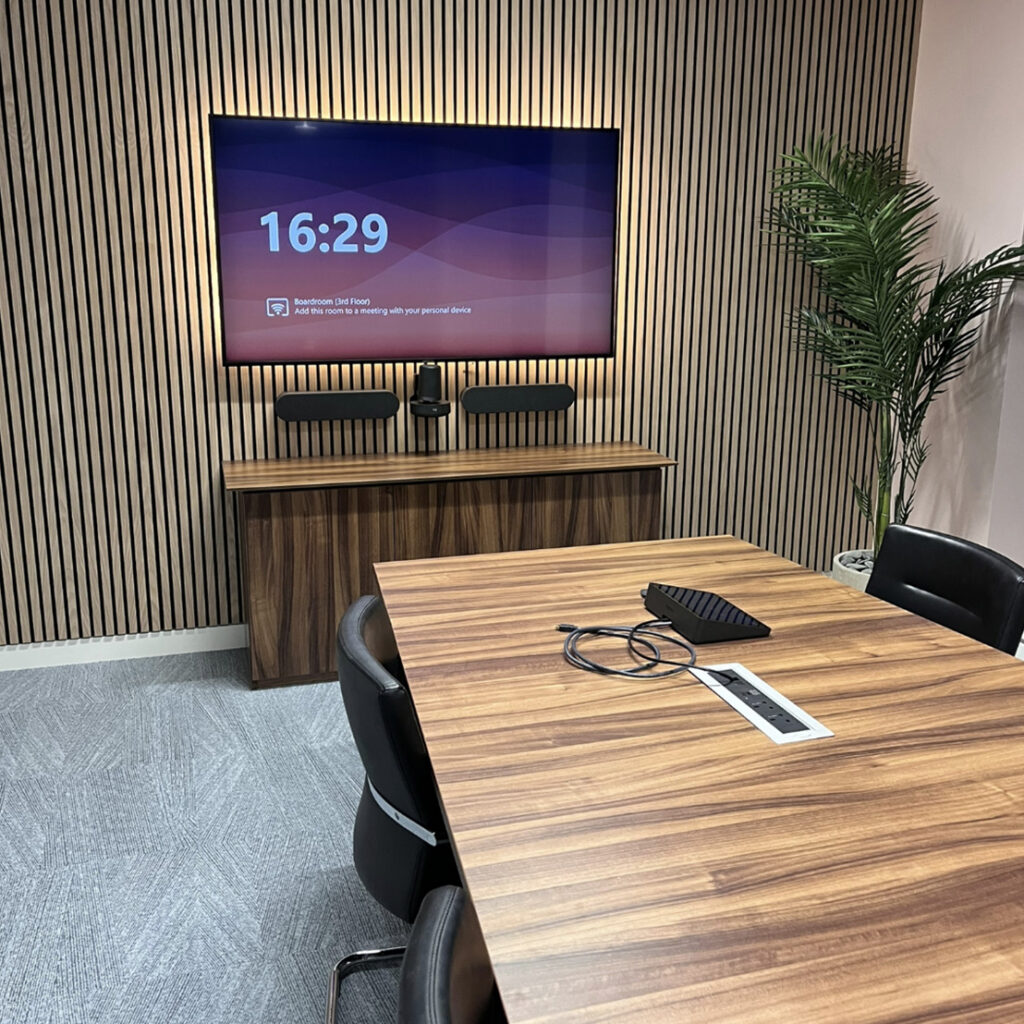
What is a Teams Rooms system?
A Microsoft Teams Rooms system transforms a meeting space into a professional, centrally managed Teams endpoint. It includes a touch console for one-touch join, integrated cameras, microphones, speakers, and one or more screens. Unlike simply connecting a laptop, Teams Rooms offers a dedicated account, license, and managed settings for a seamless meeting experience.
Two main platforms exist, and the answer to the PC question differs for each.
Option 1: Teams Rooms on Windows (dedicated PC required)
Teams Rooms on Windows runs the Teams Rooms app on a dedicated, certified Windows PC often called a ‘compute unit’ or ‘MTR PC.’ This device is usually mounted behind a display or under a table for a clean setup.
Why a dedicated PC is needed
- The Teams Rooms app runs in a locked-down mode, so the device is not used as a general-purpose computer.
- The room account signs in automatically and the app starts when the device boots, so it is ready for the next meeting.
- Certified hardware provides a supported room experience. Both Windows and Android systems support central management, although monitoring, remote access and peripheral management features vary by platform and licence.
- Peripherals such as the touch console, cameras, and audio connect to this device.
Typical components
- A certified compute unit (a small form-factor PC).
- A touch console for the meeting table.
- A camera and microphone/speaker system.
- One or two displays.
Best for: Rooms requiring specific peripherals, advanced integrations or greater flexibility. Room size alone should not determine the platform.
Option 2: Teams Rooms on Android (no separate PC)
Teams Rooms on Android runs on a certified Android based room device or system with built in computing. Many solutions use an all-in-one video bar with integrated cameras, microphones and speakers.
Why no separate PC is needed
- The computing hardware is built into the bar itself.
- The device’s Android-based software delivers the Team’s Rooms experience.
- Installation is simpler, with fewer cables and fewer components to fail.
Best for: organisations seeking a simplified deployment, provided the chosen certified Android system supports the required room size, peripherals and features.
Trade-offs: Available features depend on the certified device. Both Windows and Android support dual displays and HDMI content sharing on compatible devices. Windows may be better suited to deployments requiring specific peripherals or advanced integrations. Always review Microsoft’s latest Teams Rooms feature comparison before choosing your platform.
Option 3: Using a laptop (not a Teams Rooms system)
You can host Teams meetings in a room using a laptop and USB peripherals—a setup known as BYOD (bring your own device). This doesn’t require a dedicated PC, but you lose Teams Rooms features like one-touch join, room calendar, and central management.
BYOD works for rarely used or flexible spaces, rooms with tight budgets, or temporary setups. For regularly scheduled meetings or consistent user experience, a dedicated Teams Rooms system is the better choice.

| Feature | Windows | Android | BYOD |
|---|---|---|---|
| Dedicated PC needed? | Yes, a certified compute device | No, built into the video bar | No, but the user supplies a laptop |
| Best room size | Depends on room requirements and compatible hardware. Both platforms can support a range of room sizes. | Depends on room requirements and compatible hardware. Both platforms can support a range of room sizes. | Any, but casual use |
| Hardware flexibility | High | Depends on the certified device and configuration. Windows may suit more specialised integrations. | Depends on peripherals |
| One-touch join | Yes | Yes | No |
| Central management | Yes | Yes | Not as an integrated Teams Rooms endpoint by default |
| Installation complexity | Higher | Lower | Lowest |
How to choose
Ask yourself these questions:
- How big is the room? Larger rooms may require more complex camera, microphone and integration requirements, so check which certified Windows or Android systems support the required room design.
- How many rooms are you rolling out? All-in-one Android bars simplify large deployments.
- Do you need specific peripherals or software features? Check what each platform supports.
- Who will manage it? Confirm your IT team can support the platform you choose.
- What is your budget? Consider not only the upfront price, but all typical cost components for a Teams Rooms deployment. These include hardware (such as the dedicated PC or video bar, touch consoles, cameras, audio equipment, and displays), required licenses, and installation costs. Be sure to include examples of ongoing costs as well, like device management subscriptions, monitoring tools, support or maintenance contracts, software updates, and possible hardware replacements over time. A clear view of both initial and recurring expenses will help you plan your budget more accurately.


Licensing: don’t forget the software
Every Teams Rooms system needs the right Microsoft Teams Rooms license and a room account. Your license choice determines available management and monitoring features. Check Microsoft’s latest options before buying.
There are two main Teams Rooms license types:
– Teams Rooms Basic: Provides core meeting and calling features for a single meeting room device, including scheduling, joining meetings, and basic management. This option suits eligible room systems that need core meeting features and basic management, subject to Microsoft’s licensing limits.
– Teams Rooms Pro: Adds advanced management, monitoring, reporting, and security features, including cloud-based device management, remote support, and enhanced meeting experiences. Pro is ideal for larger rooms or organisations needing centralised control over multiple rooms.
Review the most up-to-date Microsoft Teams Rooms documentation to ensure you choose the license which fits your required feature set.
Frequently asked questions
Only for Teams Rooms on Windows. Teams Rooms on Android runs on a compatible, certified device with built-in computing; this is often an all-in-one video bar.
No. A standard office PC or laptop is not a Teams Rooms system. For Teams Rooms on Windows, use a device that is certified for the purpose and dedicated to the room.
Yes, you can join a Teams meeting from a laptop with a camera and audio device. However, you will miss Teams Rooms features such as one-touch join and central management.
Often the hardware is simpler and quicker to install, but total cost depends on the model, room size, accessories and licensing. Compare full quotes rather than headline prices.
Neither is universally better. Windows often suits rooms requiring specialised peripherals or integrations, while Android can simplify installations and standardised rollouts. The best choice depends on the room's requirements and the capabilities of the certified devices.
It is not designed for that. The compute device is dedicated to running the Teams Rooms app, which helps keep it reliable.
Conclusion
Whether you need a dedicated PC for Teams Rooms depends on your platform. Teams Rooms on Android offers an integrated solution without a separate PC, while Teams Rooms on Windows requires a dedicated, certified compute device. The right choice depends on the room’s peripherals, integrations, required features and management needs. Always confirm current hardware and features with Microsoft or your AV partner before purchasing.
To help you decide, use this quick checklist:
– Review the size and layout of your meeting space.
– List the required features, such as dual displays or advanced camera controls.
– Confirm the level of device management and support your IT team can provide.
– Discuss your budget for both initial setup and ongoing maintenance.
– Consult with your AV partner to match your needs with the best hardware and platform options.
Performing these steps will help ensure you choose the most suitable Teams Rooms setup for your organisation.
Contact us today
Contact us today to discuss your requirements or explore our full range of AV services.
+44 (0) 203 640 6030
sales@runtech.co